Android Auto
Access your Jellyfin, Emby or Navidrome library through Android Auto.
JellyBox puts your Jellyfin, Emby or Navidrome server on the car screen. Browse the full library, play what you already downloaded with no signal at all, and ask for a record by name without touching the phone.
Getting it in your car
Install JellyBox from Google Play, or sideload the APK from GitHub releases. Open it on the phone and sign in to your Jellyfin, Emby or Navidrome server first - the car screen has nowhere to type a server address, so a signed-out app just shows "Sign in on your phone" when the head unit asks for a library.
After that, connect the phone the way you normally would, by cable or wirelessly, and JellyBox appears alongside your other media apps.
Installed the APK instead of Google Play?
Android Auto hides every app it did not get from the Play Store, so the car behaves as though JellyBox is not installed at all - no error, no entry, nothing. The switch that fixes it is buried behind a hidden developer mode. You only do this once.
- Open Android Auto's settings on the phone. On recent Android that is Settings, then Connected devices, then Android Auto. Older versions have a separate Android Auto app instead.
- Scroll to the bottom and tap Version and permission info.
- Tap the version line about ten times, until it tells you developer mode is on, and accept the prompt.
- Open the three-dot menu in the top corner and choose Developer settings.
- Switch on Unknown sources, then reconnect the phone. JellyBox shows up with your other media apps.
What you can do from the car screen
The browse tree is your real library, not a cut-down version of it.
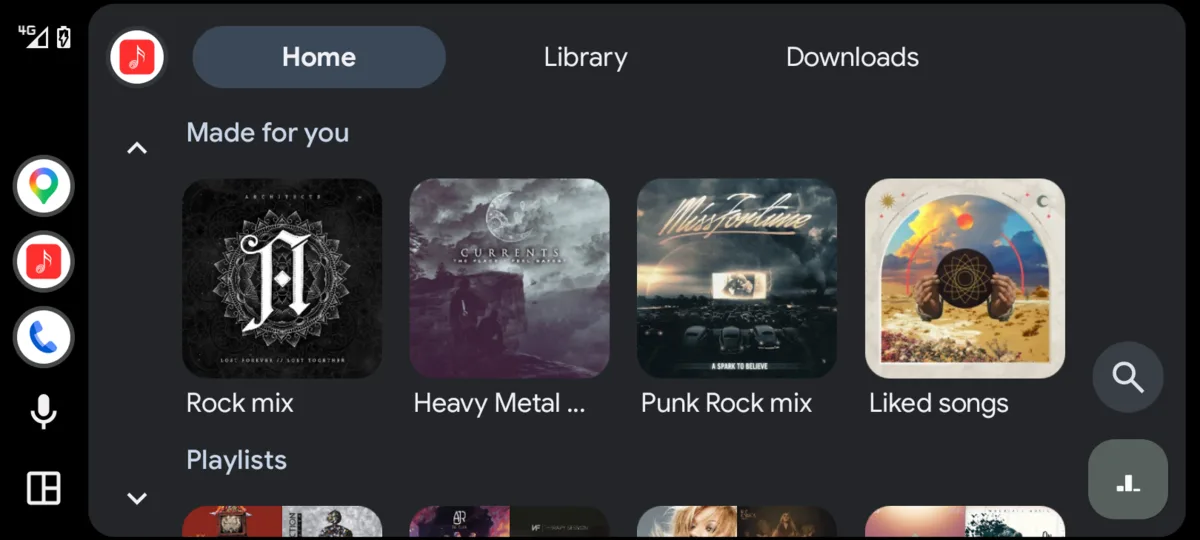
- Home opens on four rows: Recently added, the Made for you genre mixes, your most recently updated playlists, and favourite albums.
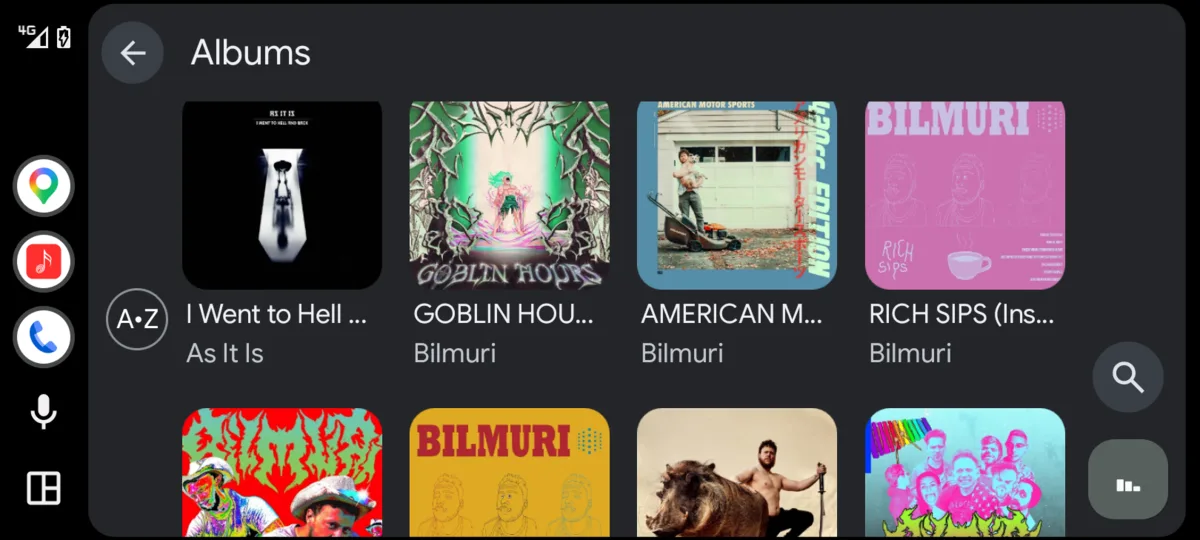
- Library holds albums, artists, playlists and songs, loaded a hundred at a time with a Load more row at the bottom of each page.
- An artist page leads with Play all, then lists their records.
- Search gets a keyboard while parked and voice while moving, and groups results into artists, albums, playlists and songs.
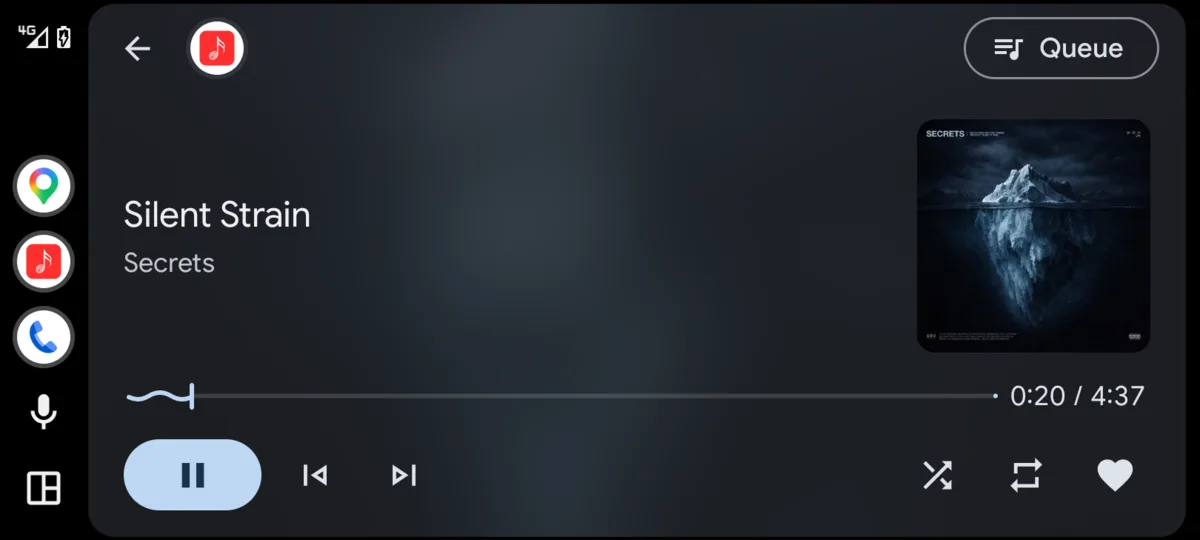
- Now playing carries shuffle, repeat and a favourite heart beside the transport controls, and the queue is one tap away.
Playing without signal
Downloads is one of the three tabs on the root screen rather than something buried in a menu, because a car is where you are most likely to lose the server. Anything you downloaded on the phone plays from local storage with no network at all.
When the server cannot be reached, Home and Library say so plainly instead of sitting empty, Downloads keeps working, and the rest refills by itself once the connection comes back. A tunnel or an underground car park does not end the drive.
Patchy coverage is handled too: the app can pre-cache the tracks coming up behind the one you are on, so it keeps playing from the cache until you are back in signal. Look for the caching settings in the app.
Worth knowing
Sort order is set in the app on your phone. Android Auto has no sort control of its own, so it follows whatever you last chose there.
If your server uses a self-signed certificate, cover art comes up blank in the car. The Android Auto process does not share the app's trust store, so it cannot fetch the images even though playback is fine. A certificate the phone already trusts avoids this.
Search results are drawn as a plain grouped list. That layout is Android Auto's own and an app cannot replace it with artwork tiles, so results look flatter than the browse screens do.
Anything missing?
Let me know if there's a feature that you need but it's not here yet. File a ticket here.
Get JellyBox
JellyBox is free and open source under AGPL-3.0, and works with Jellyfin, Emby and Navidrome servers. Grab it from the download page, or read the source.